クイックカートインに対応していないテンプレートに機能を実装する
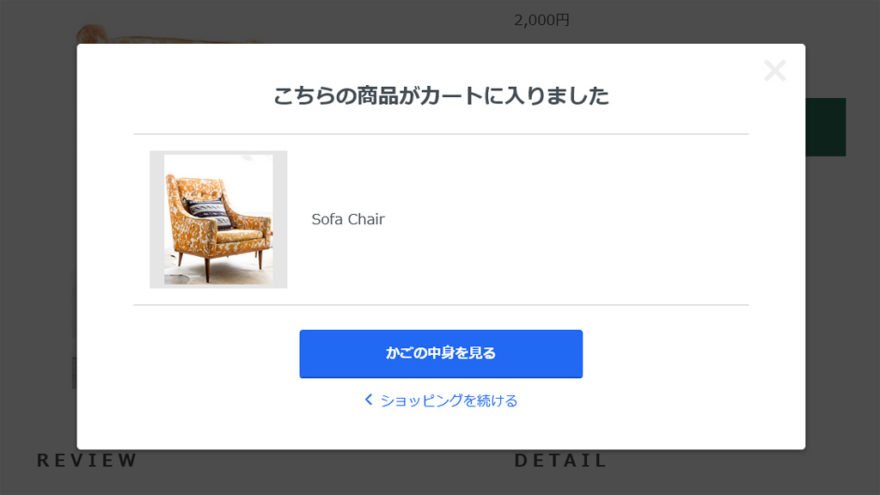
カラーミーショップ では「クイックカートイン機能」が実装されていますが、古いテンプレートやオリジナルテンプレートには実装されていません。
今回、実装の相談があったので調べてみました。
コードも載せていますので、参考にどうぞ。
クイックカートイン機能
クイックカートイン機能は、「カートに入れる」ボタンを押すと、カート画面にページ遷移することなく商品をカートに入れられる機能です。
カートに入れるときにページ遷移にかかる待ち時間がないため、複数の商品をてきぱき購入したいお客様を待たせずにすむメリットがあります。
楽天市場を見ると、「かごに追加(クイックカートイン)」「購入手続きへ(通常のカートボタン)」という2つのボタンで機能をわけています。
素早くカートに入れられるとコンバージョンしやすい、などの理由があるんだと思います。
詳細については下記の記事にある通りです。
async_cart_in.jsについて
ブラウザでカラーミーサイトのソースコードを開くと、共通HTMLの下にカラーミーのサーバー側でコードが追加されていて、JavaScriptを読み込むようになっていることがわかります。
共通HTMLのさらに下部
(略)
<script type="text/javascript" src="https://naeco2.shop-pro.jp/js/cart.js" ></script>
<script type="text/javascript" src="https://naeco2.shop-pro.jp/js/async_cart_in.js" ></script>
<script type="text/javascript" src="https://naeco2.shop-pro.jp/js/product_stock.js" ></script>
<script type="text/javascript" src="https://naeco2.shop-pro.jp/js/js.cookie.js" ></script>
<script type="text/javascript" src="https://naeco2.shop-pro.jp/js/favorite_button.js" ></script>
</body></html>
このうちの、async_cart_in.jsがクイックカートイン機能の本体です。
カラーミーショップにあるクイックカートイン機能のコードを読んでみます。短いコードです。
中身を読むと、おもな機能として3つあります。
- カート画面(決済画面)に移動するときの処理
- カートボタンを押したときの処理(エラー処理とサーバーとの送受信)
- モーダルウィンドウ表示の処理
以下で、順に説明します。
カート画面に移動するときの処理
クイックカートインがONのときは、カート画面に移動するさいにパラメータを渡す必要があります。
<form>~</form>下記コードの3-5行目で、独自タグ<{$view_cart_with_async_info}>がパラメータになります。
async_cart_in.jsのなかに、.cart_view_with_asyncをクリックするとフォーム内のパラメータを送信する(submit)ようにコードが書いてあります。
ということで、6行目のbuttonをクリックすると、formのパラメータを送信しつつカート画面が開くことになります。ここは必須箇所です。
class="cart_count"も必須です。
async_cart_in.jsを読むと、カートに入れることが成功したさいに合計数量を更新する処理があるためです。
他の部分は適当に変更可能です。
共通HTML内にある「カートを見る」リンクは下記コードを参考にして、書き換えます。
Mightyテンプレートのカートを見るコード(参考)
<div class="l-sp-header-cart-btn">
  <{if $is_enable_async_cart_in_pc}>
  <form name="cart_view_with_async" method="POST" action="<{$view_cart_url}>">
    <{$view_cart_with_async_info}>
  </form>
  <button class="l-sp-header-cart-btn__link cart_view_with_async">
    <img src="https://img.shop-pro.jp/tmpl_img/87/icon-cart.svg" alt="カートを見る" />
    <span class="l-sp-header-cart-btn__count">
      <span class="cart_count"><{$incart_total_count}></span>
    </span>
  </button>
  <{else}>
  <a href="<{$view_cart_url}>" class="l-sp-header-cart-btn__link">
    <img src="https://img.shop-pro.jp/tmpl_img/87/icon-cart.svg" alt="カートを見る" />
    <span class="l-sp-header-cart-btn__count">
      <{$incart_total_count}>
    </span>
  </a>
  <{/if}>
</div>
上記コードには2行目に条件文<{if $is_enable_async_cart_in_pc}>がありますので、is_enable_async_cart_in_pcに1を入れることで、クイックカートイン機能を使うように指示します。
共通HTMLの任意の場所(一番上でOK)
<{assign var="is_enable_async_cart_in_pc" value="1"}>カートボタンを押したときの処理
クイックカートインがONのときは、カートに入れるためのURLも変更になります。
async_cart_in.jsの処理で書き換えられますので、作業的には特に気にしなくていいです。
前)https://naeco2.shop-pro.jp/cart/proxy/basket/items/add
後)https://naeco2.shop-pro.jp/cart/proxy/basket/items/add_async
async_cart_in.jsを読み進めると、たくさんのエラー処理があることに気づきます。
エラーが出ると、クイックカートインではなく、普通のカート処理になります。
クイックカートインが動作しない場合は、何かしらエラーが出ている可能性があります(その場合はデベロッパーツールで動作を確認します)。
通常、非対応テンプレートの場合、下記でエラーになって、クイックカートインが機能しません。
async_cart_in.jsから必要な箇所を抜粋
var $isCartInAsyncMode = $('input[name="is_async_cart_in"]');

略)

$productForm.on('submit', function(e) {
  if( $isCartInAsyncMode.length === 0 ) return;

略)
input[name="is_async_cart_in"]は「カートに入れる」ボタンを押したときに、サーバーに送る情報の一つで、クイックカートインを使っているサイトと使っていないサイトの、商品詳細HTMLソース(</form>の上らへん)を比較するとわかります。
クイックカートイン非対応のテンプレートには、<input type="hidden" name="is_async_cart_in" value="1">の行が不足しています。
これを<$product.info>(カートに入れたときに送信するパラメータ)の下に追加します。
これで、async_cart_in.jsのエラーを回避できます。
商品詳細HTML
(略)
  <{$product.info}>
  <input type="hidden" name="is_async_cart_in" value="1">
</form>
モーダルウィンドウ表示の処理
クイックカートインした後のメッセージを表示するために、モーダルウィンドウ(濃いグレーのレイヤー)を表示します。
ajax処理のコールバックで、正常時・エラー時とあり、各々スタイル変更可能です。
ここのコードがたりませんので、商品詳細HTMLと商品詳細CSSの任意の場所に追加します。
作り変えたい場合は、async_cart_in.jsを読むと、どこを変更すればいいか細かい部分がわかります。
Mightyテンプレートの商品詳細ページ、モーダル(参考)
<{* クイックカートイン *}>
<div class="cart_in_modal cart_modal__close" style="display: none;">
  <div class="cart_in_modal__outline not_bubbling">
    <label class="cart_modal__close cart_in_modal__close-icon">
    </label>
    <p class="cart_in_modal__heading">
      こちらの商品が<br class="sp-br">カートに入りました
    </p>
    <div class="cart_in_modal__detail">
      <{if $product.img_url != ""}>
      <div class="cart_in_modal__image-wrap">
        <img src="<{$product.img_url}>" alt="<{$productlist[num].name}>" class="cart_in_modal__image" />
      </div>
      <{/if}>
      <p class="cart_in_modal__name">
        <{$product_name}>
      </p>
    </div>
    <div class="cart_in_modal__button-wrap">
      <form name="cart_view_with_async" method="POST" action="<{$view_cart_url}>">
        <{$view_cart_with_async_info}>
      </form>
      <button class="cart_view_with_async cart_in_modal__button cart_in_modal__button--solid">かごの中身を見る</button>
      <p class="cart_modal__close cart_in_modal__text-link">ショッピングを続ける</p>
    </div>
  </div>
</div>
<div class="cart_in_error_modal cart_in_error__close" style="display: none;">
  <div class="cart_in_modal__outline not_bubbling">
    <label class="cart_in_error__close cart_in_modal__close-icon">
    </label>
    <p class="cart_in_error_message cart_in_error_modal__heading"></p>
    <div class="cart_in_modal__button-wrap">
      <button class="cart_in_error__close cart_in_modal__button cart_in_modal__button--solid">ショッピングを続ける</button>
    </div>
  </div>
</div>
<{* // クイックカートイン *}>
Mightyテンプレートのモーダル部分のCSS(参考)
/******************************/
/* クイックカートイン */
/******************************/
.cart_in_modal, .cart_in_error_modal {
  position: fixed;
  width: 100%;
  height: 100%;
  top: 0;
  left: 0;
  background-color: rgba(0, 0, 0, 0.7);
  z-index: 20000;
  display: flex;
  overflow: auto;
}
@media screen and (min-width: 960px) {
  .cart_in_modal, .cart_in_error_modal {
    align-items: center;
  }
}
.cart_in_modal__bg {
  background-color: rgba(0, 0, 0, 0.7);
  position: fixed;
  width: 100%;
  height: 100%;
  z-index: 20000;
}
.cart_in_modal__outline {
  width: 90%;
  margin: 20px 5%;
  padding: 20px;
  background-color: #fff;
  border-radius: 5px;
  box-shadow: 0 2px 5px rgba(0, 0, 0, 0.4);
  box-sizing: border-box;
  text-align: center;
  position: absolute;
}
@media screen and (min-width: 960px) {
  .cart_in_modal__outline {
    width: 900px;
    margin: auto;
    padding: 20px 70px;
    position: relative;
  }
}
.cart_in_modal__heading {
  font-size: 20px;
  font-weight: bold;
  margin: 20px 0;
  line-height: 1.4;
}
@media screen and (min-width: 960px) {
  .cart_in_modal__heading {
    font-size: 26px;
    margin: 30px 0;
    line-height: 1.2;
  }
}
.cart_in_error_modal__heading {
  font-size: 20px;
  font-weight: bold;
  margin: 40px 0 20px;
  line-height: 1.4;
}
@media screen and (min-width: 960px) {
  .cart_in_error_modal__heading {
    margin: 30px 0;
    line-height: 1.2;
  }
}
.cart_in_modal__detail {
  display: flex;
  padding: 20px;
  border-top: 1px solid #ccc;
  border-bottom: 1px solid #ccc;
  align-items: center;
  flex-direction: column;
}
@media screen and (min-width: 960px) {
  .cart_in_modal__detail {
    flex-direction: row;
  }
}
.cart_in_modal__name {
  font-size: 16px;
  flex: 1;
  line-height: 1.4;
  text-align: left;
  margin: 0;
}
@media screen and (min-width: 960px) {
  .cart_in_modal__name {
    font-size: 18px;
  }
}
.cart_in_modal__image-wrap {
  padding: 5px;
  width: 170px;
  height: 170px;
  background: rgba(0, 0, 0, 0.1);
  position: relative;
  border: 5px solid transparent;
  box-sizing: border-box;
}
@media screen and (min-width: 960px) {
  .cart_in_modal__image-wrap {
    margin: 0 30px 0 0;
    flex-basis: 170px;
  }
}
.cart_in_modal__image {
  width: auto;
  height: auto;
  max-width: 100%;
  max-height: 100%;
  position: absolute;
  top: 0;
  bottom: 0;
  left: 0;
  right: 0;
  margin: auto;
}
.cart_in_modal__text-link {
  color: #2169f3;
  cursor: pointer;
  position: relative;
  display: inline-block;
  margin: 20px 0 0;
  padding: 0 0 0 20px;
  line-height: 1.15;
}
.cart_in_modal__text-link::before {
  content: "";
  position: absolute;
  top: 3px;
  left: 3px;
  width: 8px;
  height: 8px;
  border-top: 2px solid #2169f3;
  border-right: 2px solid #2169f3;
  -webkit-transform: rotate(225deg);
  transform: rotate(225deg);
}
.cart_in_modal__button-wrap {
  width: 100%;
  margin: 30px auto;
  font-size: 17px;
}
@media screen and (min-width: 960px) {
  .cart_in_modal__button-wrap {
    width: 350px;
  }
}
.cart_in_modal__button {
  font-size: 17px;
  font-weight: bold;
  line-height: 23px;
  display: inline-block;
  box-sizing: border-box;
  cursor: pointer;
  vertical-align: middle;
  text-decoration: none;
  color: #fff;
  border: 0;
  border-radius: 4px;
  width: 100%;
  height: 58px;
  padding: 15px;
  background: #2169f3;
  box-shadow: 0 2px 0 #1a54c2;
  outline: none;
  -webkit-appearance: none;
  -moz-appearance: none;
  appearance: none;
}
.cart_in_modal__button:hover, .cart_in_modal__button:focus {
  height: 58px;
  color: #e9f0fe;
  background-color: #1e5fdb;
  box-shadow: none;
  transform: translate3d(0, 2px, 0);
}
.cart_in_modal__close-icon {
  cursor: pointer;
}
.cart_in_modal__close-icon::before, .cart_in_modal__close-icon::after {
  content: "";
  width: 35px;
  height: 6px;
  display: block;
  position: absolute;
  top: 30px;
  right: 20px;
  background: #eee;
  border-radius: 4px;
}
.cart_in_modal__close-icon::before {
  -webkit-transform: rotate(-45deg);
  transform: rotate(-45deg);
}
.cart_in_modal__close-icon::after {
  -webkit-transform: rotate(45deg);
  transform: rotate(45deg);
}
.spinner::before {
  content: "";
  box-sizing: border-box;
  position: absolute;
  top: 50%;
  left: 50%;
  height: 100px;
  width: 100px;
  margin-top: -50px;
  margin-left: -50px;
  border-radius: 50%;
  border: 5px solid #eee;
  border-top-color: #fd7f23;
  animation: spinner 0.5s linear infinite;
}
@keyframes spinner {
  to {
    transform: rotate(360deg);
  }
}
@media screen and (min-width: 960px) {
  .sp-br {
    display: none;
  }
}

h1 p {
font-size: 12px;
line-height:18px;
margin:0 10px 0 10px;
}
ローディングアイコン
モーダルウィンドウを表示する前処理、たぶんくるくる回るローディングアイコンが表示される画面。
最近のテンプレートにはコードが削除されていますが、MODEテンプレートの共通HTMLの先頭付近にありました。
共通HTMLの大外、ヘッダーより上に置くのがよさそうです(場所によっては見えなくなる)。
上記CSSの.spinnerにアニメーションがあります。
MODEテンプレートにあった、ローディングアイコン
<div class="cart_in_modal__bg show_while_cart_in_connecting spinner" style="display: none;"></div>おわりに
カートに入れて、きちんと数が合っていればOKです。
ミスしていると、テストの際におかしな感じになりますので、すぐに気づきます。
どこか間違っているはずですので、あらためて読み直してみてください。
商品詳細ページ以外に入れる場合は、要検討です。
どこでもカラーミーと組み合わせる場合は、商品画像と商品名が表示されませんので、その部分にも作り込みが必要になります。
執筆者

えいじ@naeco.jp この記事を書いた人
自作するのが好きですぐに試したくなる、凝り性なWebエンジニア。
カラーミーショップ、モールなどのECについて記事にしています。
ご相談・お問い合わせはこちら